How to Book Real-Time, On-Demand Delivery Service
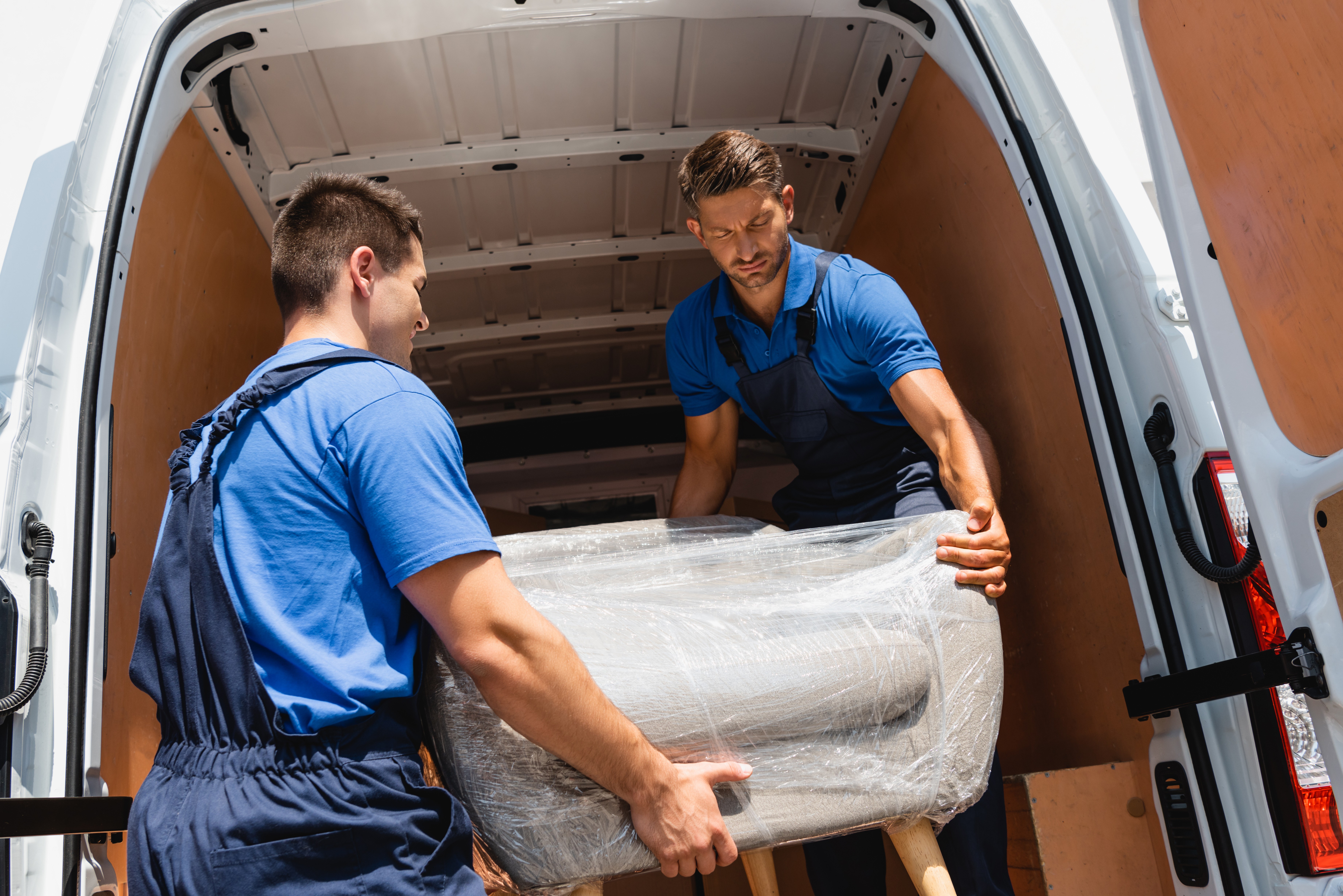
Getting something delivered fast shouldn't be complicated. Whether you're sending a last-minute package, moving an item you just purchased, or need a reliable same-day drop-off, our Real-Time / On Demand Delivery Service makes it simple — no app download, no account setup hassle, just a quick scan or click and you're on your way. In just a few steps, you can get an instant quote, book a driver, and track your delivery from pickup to drop-off, all from your mobile browser. This guide walks you through exactly how to do it, from your very first scan to closing out your completed service.
A couple of things to know before you dive in:
This service is provided through a browser-based platform. No App download or installation is required. No phone permissions are requested/required.
A valid cell phone number is required to use this service.
Tip: Take a picture of your item and/or Bill of Sale so that they are saved in your photo gallery prior to scanning the QR Code.
Getting started
Scan the QR code or click the shared link you were given. This will open up the Service Booking and Quote screen right in your browser.
Once you're in, take a look at the icons at the top of the screen. The number next to each icon tells you how many drivers are currently available in each vehicle category. Make note of which categories have availability, you'll need to pick one when setting up your real-time service.
Heads up: If all the numbers show zero, there are no drivers available right now. You can try again later or set up a Scheduled Service for a future date and time.
Build a quote
Step 1 — Enter Your Addresses & Schedule
Type in your Pickup and Drop Off addresses, then press Continue.
When the scheduling options appear, press Schedule Now to request immediate, on-demand service.
Step 2 — Describe Your Items
This is where those photos you took earlier come in handy!
Press Cargo Image #1 to attach a photo of your item or Bill of Sale.
You can add up to 5 images total — just tap the + Add an Image icon to keep adding more.
Write a brief description of your item.
Add any special Delivery Instructions ,if needed, then press Continue.
Step 3 — Build Your Quote
You'll now see a list of estimated prices next to each vehicle type on the right side of the screen, for example, estd. $000.00.
Review your options and press the quote you want to go with.
Scroll down to the bottom half of the screen — if there are any add-on service options available, you'll find them there. Select anything that applies and watch your quote update in real time.
When you're happy with your selection, press Continue to move on to booking. Not ready? No problem — you can close the browser at this point with no commitment.
Book your service
Step 4 — Accept Your Quote & Set Up Payment
Enter your personal details, including your valid cell phone number, and press Continue. A text will be sent to you with a verification code. For example, "Your phone verification code is: XXXXXX"
Enter that verification code into your browser and press Continue.
Enter your payment details. Most major credit cards are accepted — just note that American Express is not currently supported.
If you have a promo code, press Add Promo Code, enter it, and press Confirm.
Press Continue, then review everything on the Confirm Pickup screen.
Press Confirm to send your request out to the delivery network.
Step 5 — Greet Your Driver & Start the Delivery
Once a driver accepts your request, you'll get a text that says "Your On-Demand Service Call has been booked." That text includes a browser link to track your service progress in real time.
Important: Keep that browser link open and do NOT delete that text. It will notify you when your driver arrives and walk you through your next step.
You'll also receive a second text with your Service Call ID and a Pickup Code. When your driver arrives, greet them and hand over that pickup code.
From there, your driver will:
Enter the pickup code into their app
Inspect your items to make sure everything matches the service request
Load and secure your items for transport
Once your delivery is dropped off, your driver will upload a proof of delivery photo and you'll get a text confirming your service is complete.
Step 6 — Close Out Your Service
After delivery, you have the chance to rate and tip your driver by clicking the link in that original "Your On-Demand Service Call has been booked" text. It only takes a second and goes a long way!
Once you're done, close the browser. If you ever want to revisit your delivery summary, just click that same link again anytime — or save it somewhere handy for your records.
And that's it! From scan to delivery, the whole process is designed to be quick, transparent, and stress-free!